10 Do's and don'ts for every Android user


Do: Configure data usage limits

Every Android phone has a tool in the main system settings to monitor
and limit your data usage. In this age of limited data plans, you should
probably take a moment to set that up as soon as possible. You can set
your monthly billing cycle date, data limit, and configure a warning
when you’re near your limit. There’s even a setting to disable data so
you don’t end up with overages, if that’s something your carrier does.
Don’t: Use third-party lock screens

Many parts of your phone can be customized extensively, and you can even
replace things you don’t like. There’s one component that you ought to
leave alone—the lock screen. The Play Store offers a heap of replacement
lock screen apps, but there’s no official method for replacing the
Android lock screen. That means all those apps are just messy hacks that
require you sacrifice security. The method they use to take over the
screen when you wake the phone is also likely to cause lag. When it
comes to the lock screen, you should just make do with the limited
customization options included with your phone.
Do: Set up and Use ‘OK Google’

The “OK Google” hotword is the quickest way to start a voice search on Android, and it’s
something you should take advantage of. The options available to you
vary a bit from one device to the next, but you should at least be able
to speak “OK Google” when the device is awake to open a voice search
(called OK Google Everywhere). To enable this feature, go to the Google
app and open your voice settings to train it with your voice. Some
devices (like the Nexus 6) even have the ability to listen for OK Google
while the screen is off.
Don’t: Install APKs from untrusted sources

One of the cool things about Android is that you can get apps from a
variety of sources outside of Google Play, like Amazon and the open source F-Droid repository. However, with great power comes
great responsibility.
Don’t go around installing any APK you find posted on a forum, and
definitely don’t try to load pirated apps and games on your phone.
That’s a great way to end up with malware and spam. You can leave
the Unknown sourcestoggle off in the security settings if
you don’t plan to sideload any apps outside of Google Play.
Do: Disable unwanted apps

Virtually every phone and tablet comes with at least a few built-in apps
you don’t want or need. Even if you never use them, they’ll still sit
there in your app drawer, and some will even start up in the background.
Often, you won't be able to delete the app if you don't want it. This is
particularly common with carrier account management apps.
If you don’t want them, just disable them. You won’t need to root or do
anything fancy, just open your system settings and find the app manager
(the location within Settings varies by device, unfortunately). Scroll
through the list and tap on the offending apps to open the info page.
There you’ll see the disable button. Easy.
Don’t: Kill background tasks
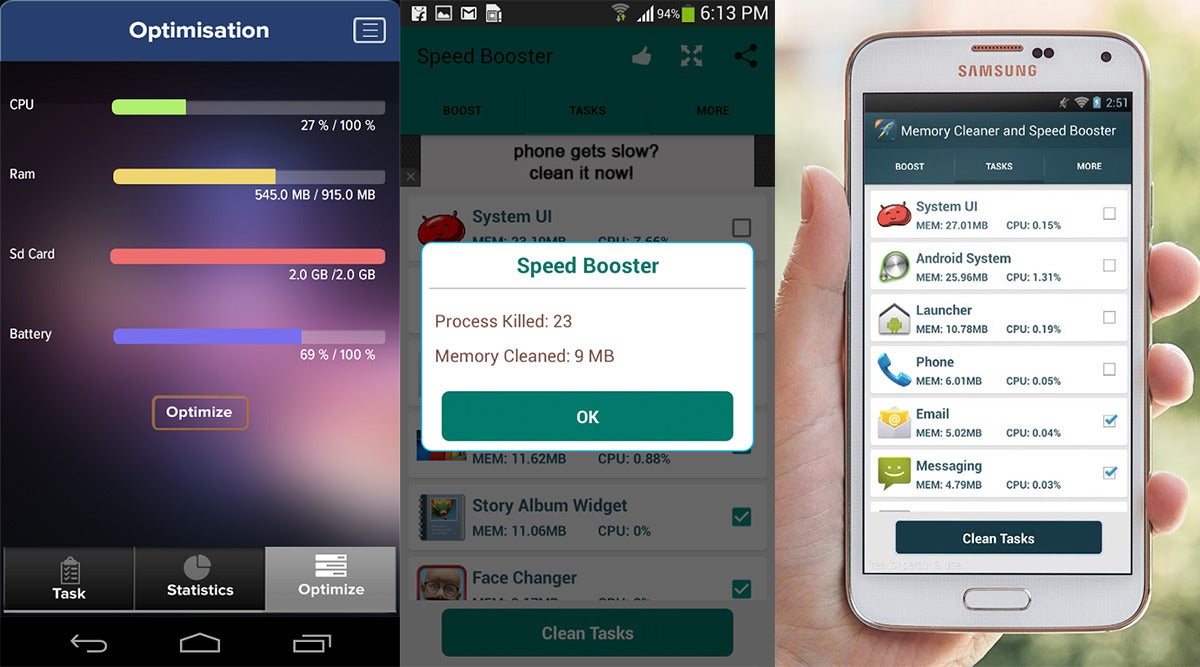
Despite what you’ve heard, Android manages its background tasks just
fine. You don’t need a task manager app or anything that claims to speed
up your phone by clearing RAM. When a process isn’t needed, Android is
smart enough to end it. In fact, micromanaging tasks will cause the
phone to slow down because most of the processes these apps kill are
simply going to start up again and draw more power in the process.
Do: Set a secure lock screen and use Smart Lock

One of Android’s best features is Smart Lock (Android 5.0 and higher
only), and it means there’s no excuse whatsoever to put off using a
secure lock screen. You can set a pattern or PIN lock screen to keep out
unauthorized snoops, then use smart lock to automatically go back to the
faster swipe unlock when certain conditions are met. For example, keep
the swipe screen active when you’re at home, but if you’re out, the
secure lock screen takes over. You can also use trusted Bluetooth
devices or even your face to keep the phone unlocked when it’s
convenient.
Don’t: Use third-party antivirus apps
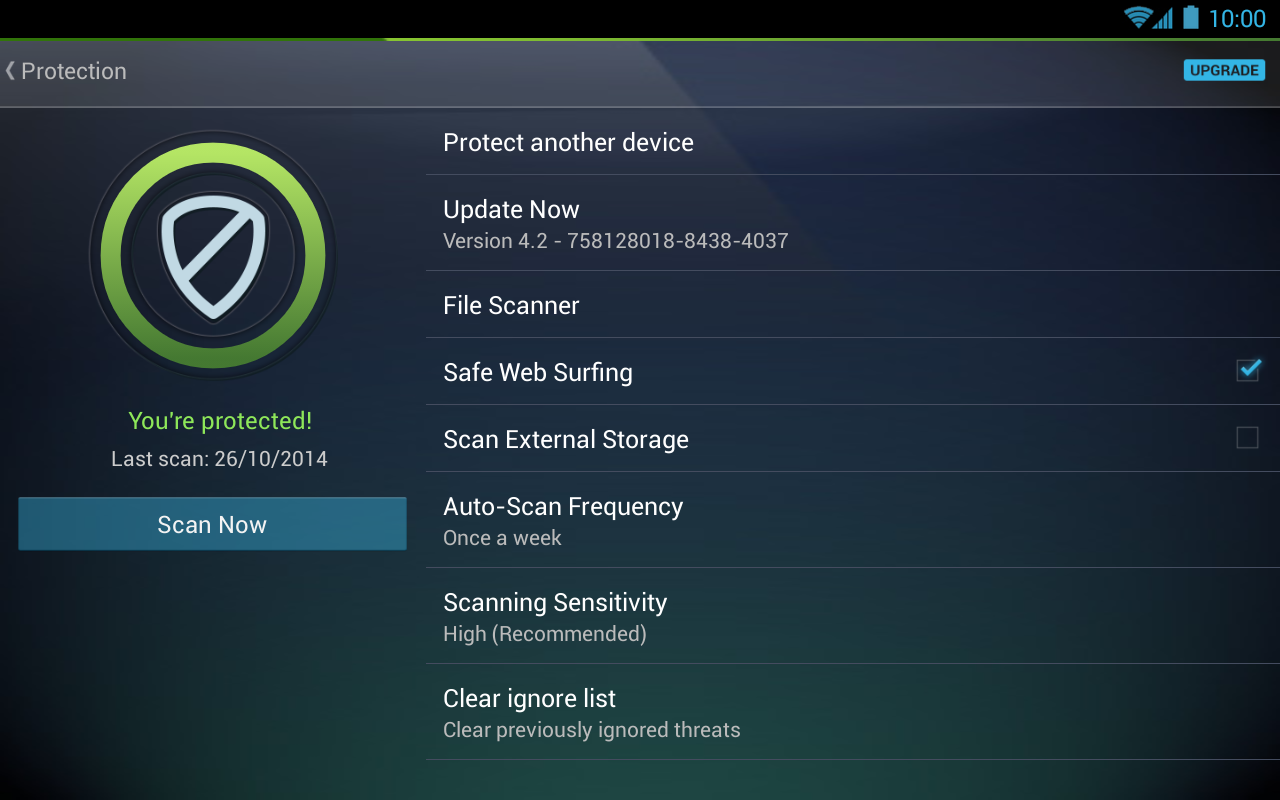
The internet can be a scary place, and the often sensationalist coverage
of Android security issues doesn’t really help. Many phones even come
with antivirus apps pre-installed. Frankly, you don’t need them. They’ll
just sit in the background and waste processor cycles to scan all the
apps you install, even though Google
is already scanning them automatically via Play
Services. Your phone is better off without a third-party antivirus app.
Do: Plan ahead with Device Manager

Google includes lost phone features as part of all Android devices with
Device Manager, which you can access from any computer or phone on
the Device Manager website. If you ever lose track of your phone, this tool can track it, make it
ring, lock it down, and even remotely delete everything if you don’t
think it’s ever coming home. Just make sure you’ve got full
administrator access enabled for Device Manager in the settings. Go
to Security and find the Phone administrators menu. Make sure Device Manager is checked, and you’re good to go.
Don’t: Reset your phone right after changing your Google password

Google added the device protection system in Android 5.1 to make a
stolen phone useless to thieves. Android now asks for the login info
from the last Google account used on a device after a reset when Device
Protection is enabled. A fair number of devices already support it, and
almost every phone and tablet will have this feature by default going
forward.
A little known part of this protection scheme is an automatic device
lockout that’s active for three days after you change your Google
password. It’s technically possible that someone who steals your phone
might also have compromised your account and changed the password, then
reset the phone to bypass the lock. Therefore, you can’t log into a
freshly reset device less than 72 hours after your password has been
changed. Overkill? Maybe, but you still shouldn’t tempt fate.


No comments:
Post a Comment