Using an Android device can seem overwhelming at first, but with a little bit of practice, it can become very intuitive. Here are some general steps to help you get started:
• Turn on your Android device: Press and hold the power button until the device turns on. It may take a few seconds to start up.
• Set up your device: The first time you turn on your Android device, you will need to set it up. Follow the on-screen instructions to select your language, connect to a Wi-Fi network, and sign in to your Google account.
• Navigate the home screen: The home screen is where you'll find your apps and widgets. To access it, swipe up from the bottom of the screen. You can also swipe left or right to access additional home screens. To open an app, simply tap on its icon.
• Use the app drawer: The app drawer contains all of the apps on your device. To access it, swipe up from the home screen. You can scroll through the apps and tap on the one you want to use.
• Use the notification panel: The notification panel is where you'll find notifications from your apps, as well as quick settings like Wi-Fi, Bluetooth, and screen brightness. To access it, swipe down from the top of the screen.
• Customize your device: Android allows you to customize your device with widgets, wallpapers, and themes. To customize your home screen, press and hold on an empty area until the customization menu appears.
• Manage your settings: To access your device's settings, swipe down from the top of the screen and tap on the gear icon. From there, you can adjust things like Wi-Fi, Bluetooth, and display settings.
These are just some basic steps to help you get started with using an Android device. With a little bit of practice, you'll become more comfortable and familiar with the operating system.
Android is a mobile operating system based on the Linux kernel and designed primarily for touchscreen mobile devices such as smartphones and tablets. Android is developed by a consortium of developers known as the Open Handset Alliance and commercially sponsored by Google. It is widely used on a variety of devices, including phones, tablets, and televisions. Android is a mobile operating system developed by Google. It is used on a variety of devices, such as smartphones and tablets, and is based on the Linux kernel. Android is known for its customizable user interface and wide range of features, which make it popular among users and developers. It is also open source, which means that anyone can use and modify the source code.
Android
Benefit of Android
There are many benefits to using Android as a mobile operating system, including:
• Customization: Android allows users to customize their devices with a wide range of themes, home screen launchers, and widgets.
• Wide range of devices: Android is available on a wide range of devices, including phones, tablets, and televisions, giving users a lot of choice when it comes to finding the right device for their needs.
• Google integration: Android devices are closely integrated with Google services, such as Google Search, Maps, and Gmail, which makes it easy for users to access these services on the go.
• Open source: Because Android is open source, it is easier for developers to create and distribute apps for the platform. This has led to a large and diverse selection of apps available in the Google Play Store.
• Regular updates: Google releases regular updates to Android, which often include new features and security improvements.
How to find the keywords that will make your SEO campaign a success
SEO is the process of optimizing a website for Google search with the goal of earning higher web traffic levels and improving the visibility of the site.
The purpose of SEO is to fill any number of marketing objectives, such as:
• Increase the quantity and quality of traffic to your website
• Generate leads and sales conversions
• Improve brand awareness and recognition
• Boost ROI from your marketing campaigns
To be successful at SEO, you must first understand how it works and what people are searching for online. Once you know this, you can identify which keywords will help you achieve your marketing goals.
Keyword research: The first step to a successful campaign
Any successful SEO campaign starts with good keyword research. This is the process of finding the right keywords to target for your website and content.
There are a few different ways to go about this. The first is to use keyword tools like Google Keyword Planner or Moz Keyword Explorer. These tools will help you find related keywords and get an idea of how much traffic they get.
Another way to do keyword research is to look at your competitor's websites and see what keywords they are targeting. You can also use tools like SEMrush or SpyFu to spy on your competitor's keywords.
Once you have a list of potential keywords, it's important to do some further research to make sure they are the right fit for your website. This includes looking at search volume, competition, and relevance.
How to find the right keywords: Tips and tricks
Before you can even begin to optimize your website for certain keywords, you first have to determine what they are. The process of finding the right keywords can be daunting, but it’s worth it to take the time to do it right.
With the help of a few tips and tricks, you can narrow down your keyword options and choose the ones that will be most effective for your SEO campaign.
To start, make a list of all the potential keywords that you could use. Once you have a good selection of keywords, you can begin to narrow them down by using various tools.
Please don't ignore the long-tail keyword, like your main keyword is "shoe", the long-tail keyword can be "Man shoe for outdoor sport", this kind can be more specific and have low competition.
Google AdWords Keyword Planner is a great resource for this purpose. It allows you to see how often people are searching for certain terms and how much competition there is for each keyword. Based on this information, you can start to eliminate some of your less favorable options.
Google Trends is another handy tool for finding out which keywords are popular and how those search numbers have changed over time. This information can help you decide which keywords to focus on for your campaign.
Utilizing keywords in your content
If you want your SEO campaign to be successful, utilizing keywords is a must. But how do you know which keywords to use? Here are a few tips:
1. Make sure your keywords are relevant to your content. There’s no point in using keywords that no one is searching for or that aren’t relevant to your business. Your goal should be to use keywords that will attract targeted traffic to your website.
2. Use keyword-rich titles and descriptions. A title or description that contains the right keywords can make a big difference in whether or not someone clicks through to your website.
3. Use keywords in your content. This is where it s important to make sure that your keywords are relevant and useful to readers, so you'll be seen as a trustworthy and valuable resource.
4. Optimize your site for search engines. This means making sure that your website is easily found by search engines.
Measuring success: Tracking your progress
To measure the success of your SEO campaign, you need to track your progress. This can be done by monitoring your website's traffic and ranking in search engines. You can also use web analytics tools to see how much traffic you are getting from organic search results.
Another way to measure the success of your SEO campaign is to track the number of leads and sales that you generate from your website. If you are able to increase the number of leads and sales that you get from your website, then this is a good indication that your SEO campaign is working.
You should also keep an eye on your competitors to see how they are performing in search engines. If they are outperforming you, then this may be an indication that you need to make some changes to your SEO campaign.
Conclusion
When it comes to launching a successful SEO campaign, keyword research is essential. Keep these tips in mind to ensure your campaign is a success:
1. Start with seed keywords: Begin by brainstorming a list of potential keywords related to your business. These are known as seed keywords.
2. Use keyword research tools: Once you have a list of seed keywords, use keyword research tools like Google AdWords Keyword Planner and Moz Keyword Explorer to find related keywords with high search volume.
3. Target long-tail keywords: Long-tail keywords are specific and tend to have lower search volume than more general terms. However, they are often easier to rank for and can be more effective in driving traffic to your website.
4. Utilizing keywords in your content. Include your target keywords in the headline and throughout the body of your content. For example, if you are writing an article on how to grow tomatoes, use both “tomatoes” and “how to grow tomatoes” in your content.
Hope you enjoy this article and if you like it, please share it with others. I'd much appreciate it. If you have any questions, please leave me a message.
Cell Phone Safety Tips Worth Following In Your Life
Strong Word A phone without a word is dangerous as it invites unwanted access to your phone without your authorization. Set a word, stronger the better. Aged models of smartphones come with pattern word or alphanumeric, more recent bones come with point setting some also have facial recognition capabilities.
Use the stylish settings you can with your make of smartphone. Indeed if you lose your phone you will not risk losing you information on the phone to nonnatives. Avoid Using The Phone While It's Charging With smartphones being used daily for long hours it sure drains the battery.
We love our exchanges and at times indeed an nearly drained battery can not keep us out. We'll plug in the bowl and continue using the smartphone. How numerous of you do this? You need to quit doing this as there have been numerous incidents reported recently where people have indeed lost the life, they were using the cell phone while it was charging. Again it's stylish to avoid using a cell phone when charging. Avoid Sleeping With Your Cell Phone By Your Side When you sleep you need to sleep peacefully, you do not need to hear the buzzing of your phone or joggle when you're sleeping. You may consider it normal but a good sleep will keep you healthy for a long time. Keep Your Phone exchanges Short And Sweet. Smartphones have surely reduced the distance between people. further and further disruptive offers from telecom also give you the liberty to talk with your near and dear bones for hours. Health experts suggest talking straight for further than 2 hours isn't good for health. Avoid Using Your Cell Phone When The Signal Is Weak Using your smartphone in areas having weak signal might lead to exposure to phone radiation. Weaker signal means further phone radiation and vice versa, hence its stylish to avoid using your smartphone when the signal is weak, as radiation exposure can lead to a brain excrescence. Do not Use The Phone When The Signal Is Weak Yes, you mustn't use your phone when the network signal is weak. Have tolerance and stay until the network becomes strong. Keep it away and stay. Other than that, use your phone for exigency only.
Every Android phone has a tool in the main system settings to monitor
and limit your data usage. In this age of limited data plans, you should
probably take a moment to set that up as soon as possible. You can set
your monthly billing cycle date, data limit, and configure a warning
when you’re near your limit. There’s even a setting to disable data so
you don’t end up with overages, if that’s something your carrier does.
Don’t: Use third-party lock screens
The stock lock screen is always more secure and stable than its
replacements.
Many parts of your phone can be customized extensively, and you can even
replace things you don’t like. There’s one component that you ought to
leave alone—the lock screen. The Play Store offers a heap of replacement
lock screen apps, but there’s no official method for replacing the
Android lock screen. That means all those apps are just messy hacks that
require you sacrifice security. The method they use to take over the
screen when you wake the phone is also likely to cause lag. When it
comes to the lock screen, you should just make do with the limited
customization options included with your phone.
Do: Set up and Use ‘OK Google’
Instant voice search from anywhere!
The “OK Google” hotword is the quickest way to start a voice search on Android, and it’s
something you should take advantage of. The options available to you
vary a bit from one device to the next, but you should at least be able
to speak “OK Google” when the device is awake to open a voice search
(called OK Google Everywhere). To enable this feature, go to the Google
app and open your voice settings to train it with your voice. Some
devices (like the Nexus 6) even have the ability to listen for OK Google
while the screen is off.
Don’t: Install APKs from untrusted sources
Be careful what you sideload!
One of the cool things about Android is that you can get apps from a
variety of sources outside of Google Play, like Amazon and the open source F-Droid repository. However, with great power comes
great responsibility.
Don’t go around installing any APK you find posted on a forum, and
definitely don’t try to load pirated apps and games on your phone.
That’s a great way to end up with malware and spam. You can leave
the Unknown sourcestoggle off in the security settings if
you don’t plan to sideload any apps outside of Google Play.
Do: Disable unwanted apps
Get out of here with that junk.
Virtually every phone and tablet comes with at least a few built-in apps
you don’t want or need. Even if you never use them, they’ll still sit
there in your app drawer, and some will even start up in the background.
Often, you won't be able to delete the app if you don't want it. This is
particularly common with carrier account management apps.
If you don’t want them, just disable them. You won’t need to root or do
anything fancy, just open your system settings and find the app manager
(the location within Settings varies by device, unfortunately). Scroll
through the list and tap on the offending apps to open the info page.
There you’ll see the disable button. Easy.
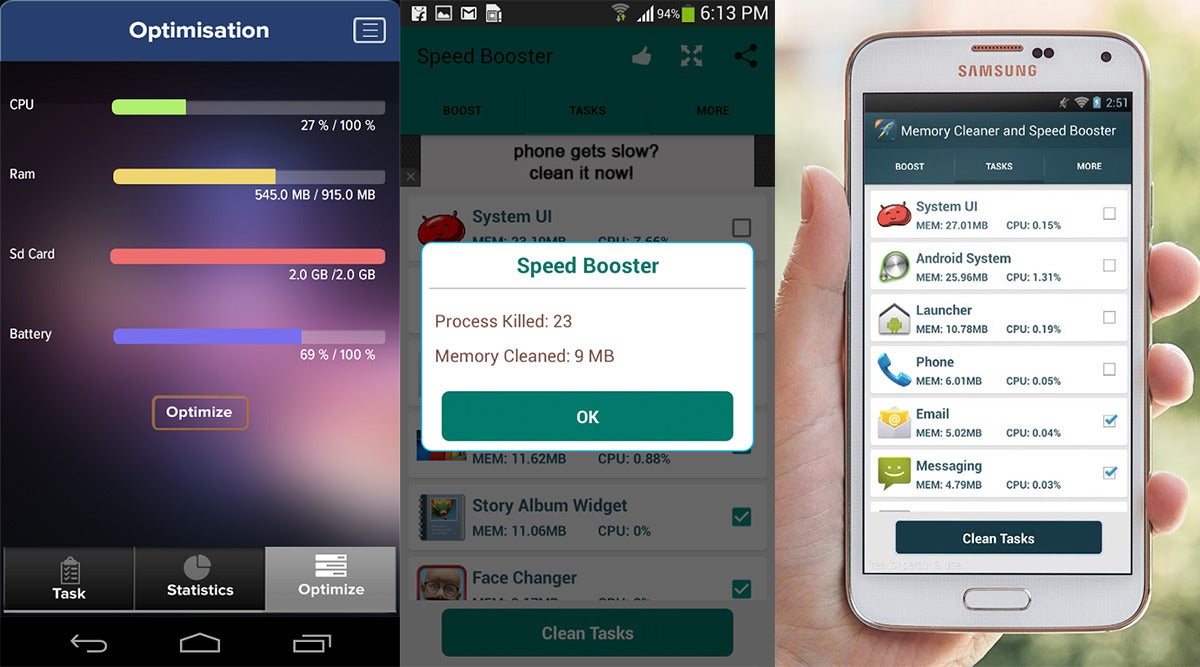
Don’t: Kill background tasks
This will do more harm than good.
Despite what you’ve heard, Android manages its background tasks just
fine. You don’t need a task manager app or anything that claims to speed
up your phone by clearing RAM. When a process isn’t needed, Android is
smart enough to end it. In fact, micromanaging tasks will cause the
phone to slow down because most of the processes these apps kill are
simply going to start up again and draw more power in the process.
Do: Set a secure lock screen and use Smart Lock
Security and convenience? Sign me up!
One of Android’s best features is Smart Lock (Android 5.0 and higher
only), and it means there’s no excuse whatsoever to put off using a
secure lock screen. You can set a pattern or PIN lock screen to keep out
unauthorized snoops, then use smart lock to automatically go back to the
faster swipe unlock when certain conditions are met. For example, keep
the swipe screen active when you’re at home, but if you’re out, the
secure lock screen takes over. You can also use trusted Bluetooth
devices or even your face to keep the phone unlocked when it’s
convenient.
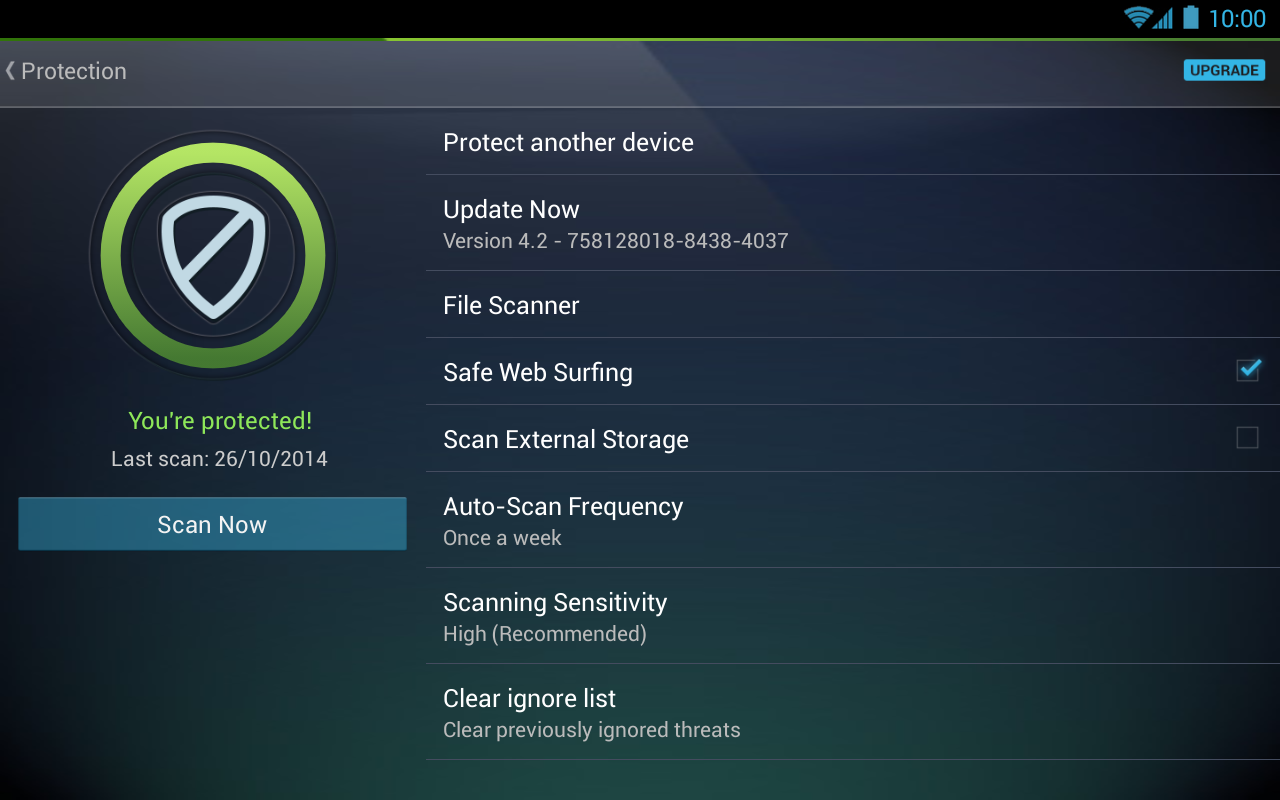
Don’t: Use third-party antivirus apps
This is just redundant.
The internet can be a scary place, and the often sensationalist coverage
of Android security issues doesn’t really help. Many phones even come
with antivirus apps pre-installed. Frankly, you don’t need them. They’ll
just sit in the background and waste processor cycles to scan all the
apps you install, even though Google
is already scanning them automatically via Play
Services. Your phone is better off without a third-party antivirus app.
Do: Plan ahead with Device Manager
Is it in the couch cushions again or did some hooligan take it?
Google includes lost phone features as part of all Android devices with
Device Manager, which you can access from any computer or phone on
the Device Manager website. If you ever lose track of your phone, this tool can track it, make it
ring, lock it down, and even remotely delete everything if you don’t
think it’s ever coming home. Just make sure you’ve got full
administrator access enabled for Device Manager in the settings. Go
to Security and find the Phone administrators menu. Make sure Device Manager is checked, and you’re good to go.
Don’t: Reset your phone right after changing your Google password
Device protection is disabled by the OEM unlock toggle.
Google added the device protection system in Android 5.1 to make a
stolen phone useless to thieves. Android now asks for the login info
from the last Google account used on a device after a reset when Device
Protection is enabled. A fair number of devices already support it, and
almost every phone and tablet will have this feature by default going
forward.
A little known part of this protection scheme is an automatic device
lockout that’s active for three days after you change your Google
password. It’s technically possible that someone who steals your phone
might also have compromised your account and changed the password, then
reset the phone to bypass the lock. Therefore, you can’t log into a
freshly reset device less than 72 hours after your password has been
changed. Overkill? Maybe, but you still shouldn’t tempt fate.
Android 6.0 "Marshmallow" is a version of the Androidmobile operating system. First unveiled in May 2015 at Google I/O under the code name "Android 'M'", it was officially released in October 2015.
Marshmallow primarily focuses on improving the overall user experience of Lollipop,introducing a new permissions architecture, new APIs for contextual assistants (a feature notably leveraged by "Google Now On Tap"—a new capability of the Google Search app), a new power management system that reduces background activity when a device is not being physically handled, native support for fingerprint recognition and USB Type-C connectors, the ability to migrate data to a micro SD card and use it as primary storage, as well as other internal changes.
User experience
A new "Assist" API allows information from a currently-opened app, including text and a screenshot of the current screen, to be sent to a designated "assistant" application for analysis and processing. This system is used by the Google Search app feature "Google Now on Tap", which allows users to perform searches within the context of information currently being displayed by holding the "Home" button or using a voice command. The search generates on-screen cards overlaid onto the app, which display information, suggestions, and actions related to the content."Direct Share" allows Share menus to display combinations of contacts and an associated app to be displayed, as opposed to selecting an app and then choosing a target within the app itself..
A newly-inserted SD card or other secondary storage media can be designated as either "Portable" or "Internal" storage. "Portable" maintains the default behavior of previous Android versions, treating the media as a secondary storage device for storage of user files, and the storage media can be removed or replaced without repercussions. When designated as "Internal" storage, the storage media is reformatted with an encrypted ext4 file system, and is "adopted" by the operating system as the primary storage partition. Existing data (including applications and "private" data folders) are migrated to the external storage, and normal operation of the device becomes dependent on the presence of the media. Apps and operating system functions will not function properly if the adopted storage device is removed. If the user loses access to the storage media, the adopted storage can be "forgotten", which makes the data permanently inaccessible.
1. Uninstall apps from your home screen or app drawer
In Android Marshmallow you can now uninstall an app on your home screen or in your app drawer simply by long-pressing it. At the top of the screen you'll now see options for Remove or Uninstall on the home screen, or App Info and Uninstall in the app drawer. Simply drag the app icon to the one you want.
2. Activate Developer Options
Developer Options are nothing new, but there are a few new developer one in Android Marshmallow. To access Developer options, go to Settings > About Phone and tap Build Number seven times, until a toast pop-up notifies you that you are now a developer.
Back up a step and you'll see Developer Options listed right above About Phone. This is where you can enable USB Debugging, OEM Unlocking or Show Touches, tweak animations, or access some of the other tips below.
Granular app permissions was the holy grail of the Android Marshmallow release. We all hoped it would pan out but no one really believed it would. We had always been told that denying specific app permissions within a third-party app could break it. Now, however, Android lets you manage app permissions individually, without developers having had to do anything, and everything seems to work swimmingly.
To access app permissions, go to Settings > Apps and tap an individual app to see its permissions. Then simply flip the switch for the permissions you do or don't want to grant it. You can also view a list of permissions to see which have been granted to which apps. Just go to Settings > Apps, then tap the overflow menu in the top right corner and go to Advanced > App Permissions.
The UI Tuner is available once you've enabled the Developer Options mentioned above. Just go to Settings > Developer Options and flip the switch for Show System UI Tuner. Back up a step and you'll see System UI Tuner at the bottom of your Settings list.
In System UI Tuner, tap Quick Settings and you'll see a mockup of your Quick Settings shade. You can add tiles (press the + at the bottom), move the toggles around (tap and drag) or delete toggles (tap and drag to the bottom). Your changes will be reflected in the Quick Settings menu.
5. Get to know RAM Manager
Android Marshmallow is all about giving us even more power over our beloved Androids, and RAM is a huge part of that. Go to Settings > Memory > Memory used by apps, to see a list of all your memory-hogging apps.
Tapping an entry will show you detailed info and give you the option to force stop the app if necessary. Take some time to familiarize yourself with this part of your Android – it's a great tool to help you understand what RAM usage is normal and what's out of the ordinary.
6. Find your Downloaded, Running, All and Disabled app tabs
The RAM Manager is also effectively the new home for the 'Running' tab that was in previous versions of the Settings > Apps section. Unlike previous Android versions, Android Marshmallow doesn't break your apps list down into tabs for 'Downloaded', 'Running', 'All' and 'Disabled'.
The 'Running' tab now appears as RAM Manager; 'All' and 'Disabled' are now options in a drop-down menu, accessible once you've disabled at least one app. The default view in Settings > Apps is the 'All' apps tab. We'll have to wait and see how devices with SD cards display the information that was previously found in the 'SD Card' tab.
Android Marshmallow allows you to automatically associate specific apps with specific types of links. So if someone emails you a Twitter link, for example, you can set Twitter as the default app for opening such links, rather than picking from a list every time.
Although you could set certain apps as default apps before, the system didn't work all that well. Now you can associate specific domain URLS with an app of your choice. For example, all facebook.com links can be set to open either in Facebook, Tinfoil or another third-party Facebook app automatically.
To do this, go to Settings > Apps, then tap the overflow menu at the top right and go to Advanced > App Links, then flip the switch for the apps that you want to set to automatically intercept links from specific domains.
8. Ignore battery optimizations
Android Marshmallow delivers a great new feature called Doze. When your phone or tablet has been inactive for a while, Android Marshmallow will automatically hibernate it (although alarms and priority notifications can still come through).
You can also still use the Battery Saving Mode, just like in Lollipop. Now, however, you can exclude up to three apps from the battery optimizations imposed by Battery Saver or Doze, so they can run at full strength while everything else takes a rest.
Go to Settings > Battery and tap the overflow menu in the top right, choose Ignore Optimizations and select the apps you want this to apply to. You can access the same menu from Settings > Apps > overflow menu > Advanced > Ignore Optimizations.
9. Activate Google Now from the lock screen
You might have missed this one, but the lock screen shortcut to the dialer has been replaced by Google Now. This is a welcome change; you can use Google Now to call someone just by speaking (along with plenty of other things), so you haven't lost out on functionality by losing the dialer shortcut.
Simply swipe from the bottom left-hand corner of the lock screen to get Google Now ready to receive your voice command.
10. Enjoy Google Now on Tap
Google Now on Tap is easily my favorite feature in Android Marshmallow. It brings Google Now functionality to every part of your phone or tablet. There's no need to switch apps or copy and paste phrases anymore – once it's enabled, you can bring up Google Now on Tap from any app, simply by selecting text and long-pressing the Home button.
Google Now on Tap can provide relevant content without even leaving the app you're in.
11. Disable notification peeking
Heads-up notifications, or 'peeking' as it is now referred to, is the feature that allows notifications to pop up over the top of your display. It was introduced in Android Lollipop, but since app developers now tend to enable peeking by default, Android Marshmallow gives you the power to decide if you want to allow it or not.
If these types of notifications bother you, you can go into Settings > Sound & Notifications > App Notifications, then select the app they're coming from, and switch off 'allow peeking'.
If notification peeking in a particular app is bothering you, you can disable it for that app.